How to Download a Google Slides Presentation Without Hidden Slides
Step 1: Open Your Google Slides Presentation
1. Go to https://slides.google.com or where you may have the ES
2. Open the presentation you want to download.
Step 2: Access the Print Preview
1. Click on the **File** menu in the top-left corner of the screen.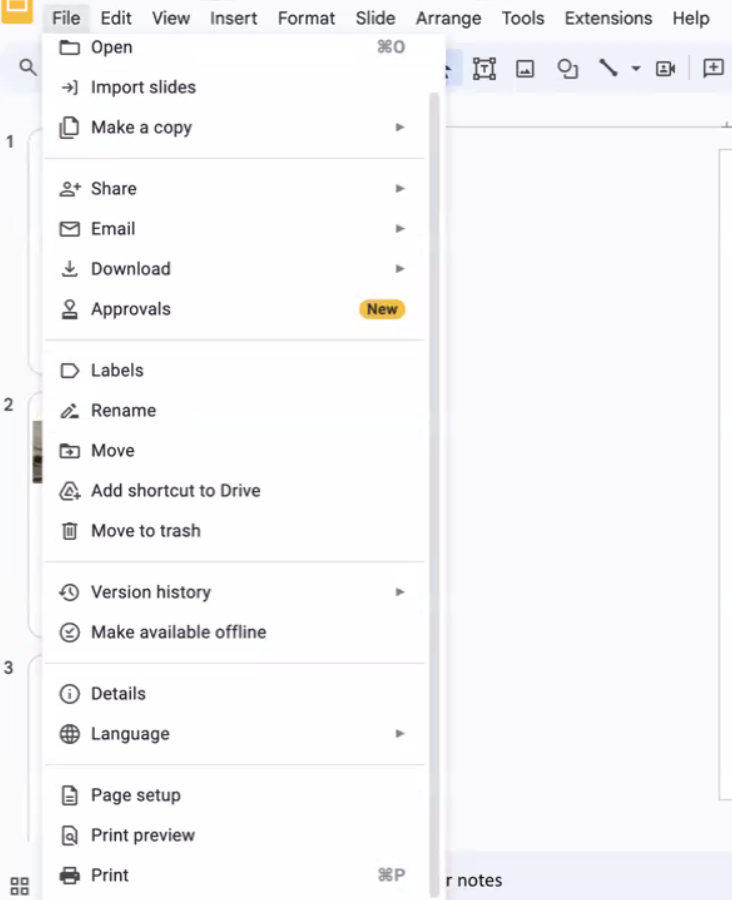
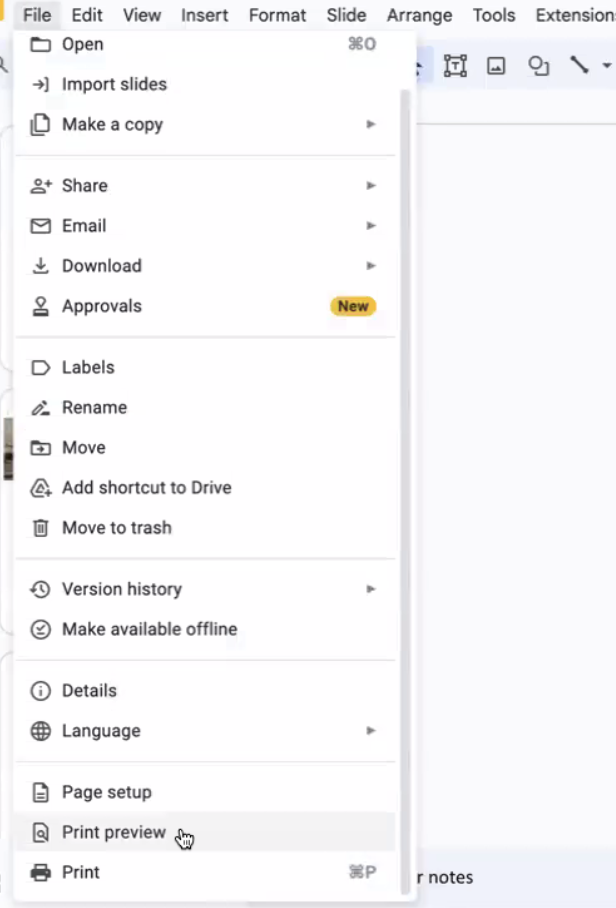
2. From the dropdown menu, select **Print Preview**.
Step 3: Modify Print Settings
1. Once the Print Preview pops up, you will see an option highlighted in yellow: Include Skipped Slides.

2. Click on the highlighted yellow area to deselect this option, ensuring it is no longer highlighted.

Step 4: Download the Presentation as a PDF
1. Click on the **Download As PDF** button located on the upper right of the preview window.

2. Save the file to your desired location on your computer.
Summary
Following these steps will help you download your Google Slides presentation without the hidden slides. Remember to double-check that the "Include Skipped Slides" option is not highlighted before downloading.
---
If you have any questions or need further assistance, feel free to ask!
---
Would you like to add or modify any parts of this guide? Let me know if you need specific images or have any preferences for additional details!
Was this article helpful?
That’s Great!
Thank you for your feedback
Sorry! We couldn't be helpful
Thank you for your feedback
Feedback sent
We appreciate your effort and will try to fix the article